End-to-end guide — no account needed
How AutoYou works.
From a fresh install to a live connection between your phone and computer — every step explained. No account required. No cloud. Free.
Architecture
How the pieces connect
AutoYou has three layers: the mobile app, autoyou_lib (the Python server on your computer),
and an optional AI pipeline. The app and server pair once via a messaging platform, then talk
directly P2P over WebRTC for everything after.
AutoYou App (iOS / Android)
    │
    │  ① OTP / AutoPair  ──→  tunnelmole URL  -or-  AutoYou Cloud relay
    │  ② WebRTC / SRTP   ──→  direct P2P (after signaling)
    ▼
autoyou_lib  (Python, your machine)
    │  ③ DataChannel (SCTP) ── chat messages
    │                       ── HTTP proxy requests (browser)
    │                       ── file transfers, ping/pong
    │  ④ SRTP audio track  ── TTS audio to app
    │  ⑤ AudioTrackSink    ── Whisper STT from mic
    │  ⑥ SSE /api/v1/events
    ▼
OpenClaw autoyou plugin  (Node.js, optional)
    ├── routes messages → OpenClaw AI pipeline
    ├── fallback        → autoyou_lib /v1/chat/completions
    └── registers       → autoyou/default model provider
autoyou_lib internal
Port 8099
REST + SSE API. Used by the OpenClaw plugin. Never exposed publicly.
autoyou_lib public auth
Port 8098
The /auth and /signal endpoints. Exposed via tunnelmole or AutoYou Cloud during pairing.
OpenClaw gateway
Port 8856
Main AI pipeline. AutoYou plugin routes chat messages here for AI processing.
Prerequisites
What you need
The core route requires only Python and the AutoYou mobile app. The OpenClaw integration additionally needs Node.js.
| Item | Minimum version | Notes |
|---|---|---|
Python |
3.10+ | For autoyou_lib |
Node.js |
22+ | For OpenClaw plugin only |
OpenClaw |
2025.0.0+ | For AI pipeline integration |
| AutoYou iOS app | iOS 16+ | iPhone or iPad |
| AutoYou Android app | Android 10+ | — |
| Telegram / WhatsApp / Signal | Any current | One messaging platform for OTP pairing |
Installation
Install and start autoyou_lib
autoyou_lib is the Python server that runs on your computer. It manages
WebRTC signaling, the DataChannel, audio processing, and the local REST API.
Install core dependencies
This covers pairing, WebRTC, browser proxy, and chat — no audio:
pip install fastapi uvicorn aiohttp pydantic cryptography aiortc avAdd voice support (optional)
Required for Whisper STT and TTS audio back to the app:
pip install openai-whisper sounddevice numpy scipyAdd TOTP support (Secure Professional mode)
pip install pyotpStart the server
Choose the mode that matches your setup:
# Open mode (default)
python -m autoyou_lib

# Secure mode (AES-256-GCM encrypted AutoPair)
python -m autoyou_lib --security-mode secure

# Secure Professional (TOTP 2FA)
python -m autoyou_lib --security-mode secure-pro --totp-secret BASE32SECRET

# With OpenClaw AI pipeline
python -m autoyou_lib --openclaw-api http://127.0.0.1:8856 \
                       --openclaw-token YOUR_TOKEN
Using OpenClaw? Set "autoStartLib": true in the plugin config
and OpenClaw will start and supervise autoyou_lib automatically.
See the OpenClaw guide.
First-time setup
OTP pairing — how it works
The first time you connect, AutoYou verifies your phone using a one-time password sent through a messaging platform you already trust. This is the only step that requires manual action — future reconnections use AutoPair automatically.
Get a public URL for your server
Send /pair to your bot on Telegram, WhatsApp, or Signal.
The server starts tunnelmole, gets a public HTTPS URL, and replies with
/otp <code> for you to forward to the AutoYou app.
# You send to your bot:
/pair

# Bot responds:
/otp 847291 ← copy this into the AutoYou appEnter the OTP in the AutoYou app
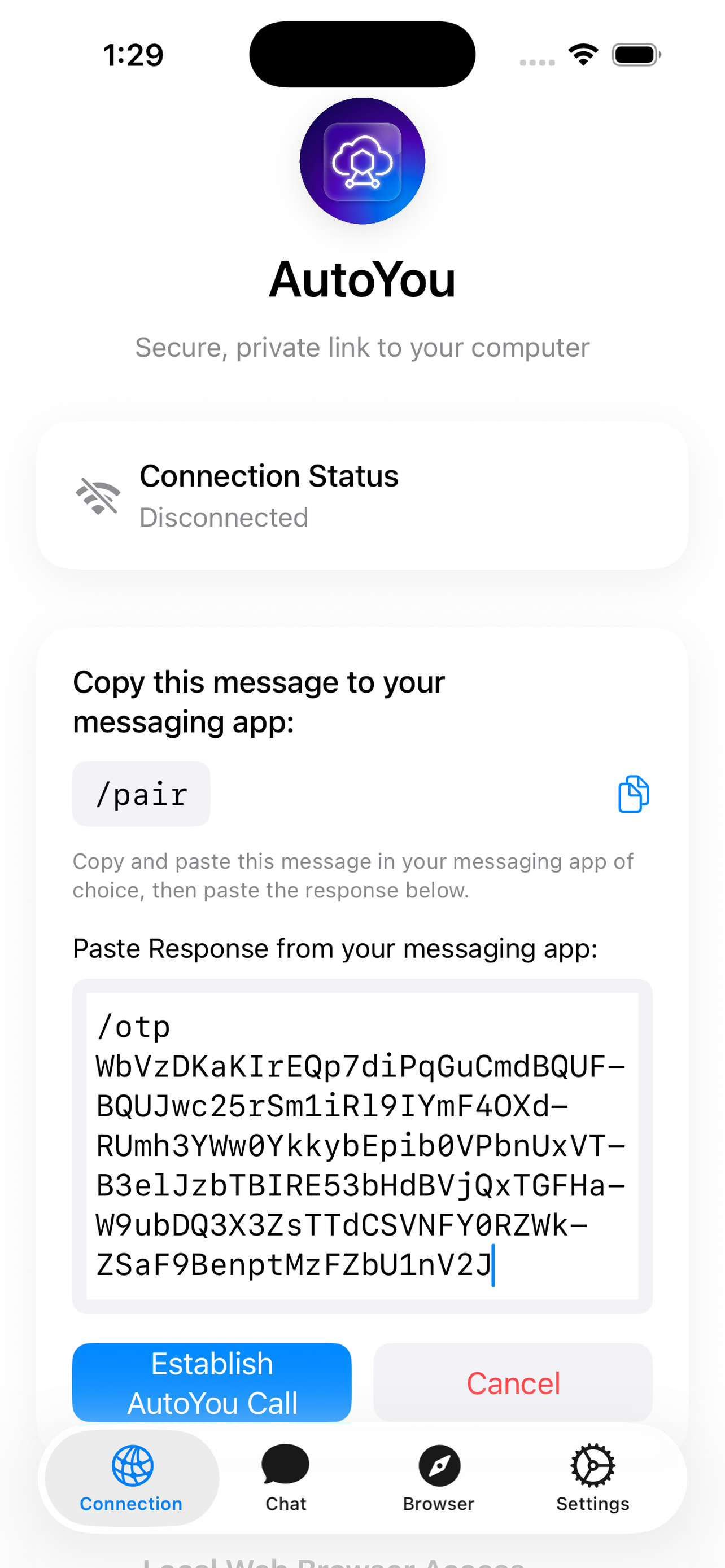
Open the AutoYou app, tap Connect, enter the OTP code.
The app sends it to the server's /auth endpoint via the tunnelmole URL.
Server verifies, WebRTC begins
The server verifies the OTP using SHA-256. On success it creates a WebRTC offer (SDP) and returns it to the app. In Secure Professional mode, the TOTP secret is returned encrypted inside the response.
ICE negotiation + direct link opens
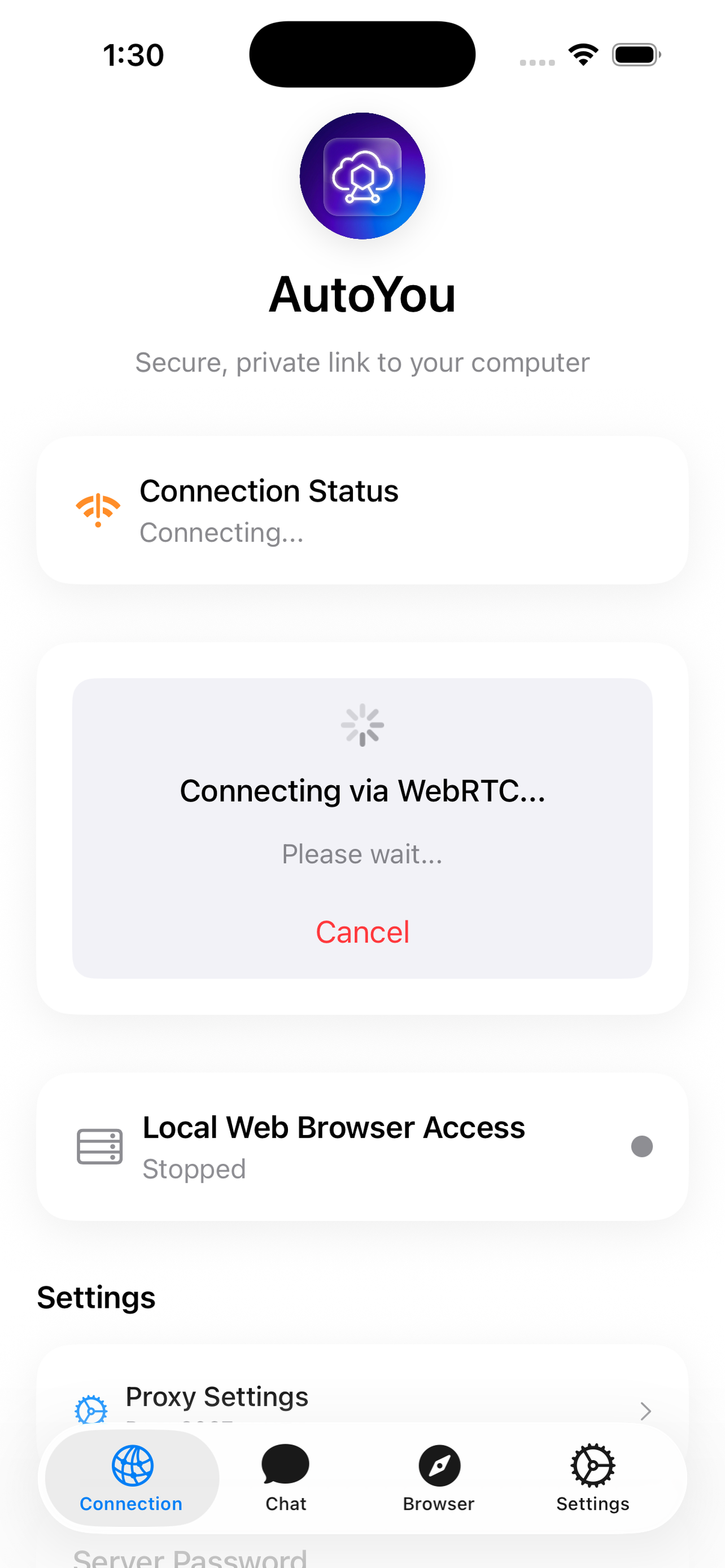
The app creates a WebRTC answer, posts it back to /signal,
and ICE candidate exchange completes the handshake.
The DataChannel (SCTP) and audio track (SRTP) open.
Tunnelmole is no longer involved — the connection is direct P2P.
Automatic reconnect
AutoPair — no codes after the first time
Once you've paired once, AutoPair handles every subsequent reconnection automatically. No more messaging bots, no more copy-pasting codes.
App sends an AutoPair offer
The app sends an autopair_offer (containing a new WebRTC SDP) directly to
the server's /autopair endpoint or via AutoYou Cloud relay.
In Secure / Secure-Pro modes the payload is AES-256-GCM encrypted.
Server validates and answers
The server decrypts the offer, verifies the session token (and TOTP code in Secure-Pro),
and replies with an autopair_answer (the WebRTC answer SDP).
P2P link established
ICE completes, the DataChannel opens, and you're connected — without any user interaction.
Paid tier: AutoYou Cloud relay enables AutoPair without running tunnelmole. The cloud acts as a signaling relay only — your actual data still flows P2P. See Cloud pairing →
Security
Three security modes
Configure the server with --security-mode. The app adapts its pairing
flow automatically based on what the server advertises.
Standard WebRTC security
Start with: python -m autoyou_lib
- WebRTC DTLS + SRTP always active
- OTP verified with SHA-256 hash
- AutoPair reconnects with saved session key
AES-256-GCM encrypted AutoPair
Start with: --security-mode secure
- All AutoPair payloads AES-256-GCM encrypted
- Key =
SHA-256(otp_secret).digest() - Wire format:
base64(nonce[12] || ciphertext)
TOTP two-factor authentication
Start with: --security-mode secure-pro --totp-secret SECRET
- TOTP secret shared encrypted during OTP pairing
- AES key derived from TOTP secret (not just OTP)
- Every reconnect requires valid TOTP code
Browser proxy
Access your computer's web from your phone
The DataChannel HTTP proxy tunnels HTTP requests from the app's Browser tab through the SCTP DataChannel to your computer, and forwards the response back. No ports need to be opened on your firewall.
Enable the proxy on the server
python -m autoyou_lib --proxy-enabled --proxy-target http://127.0.0.1:8856
--proxy-target is the local address to proxy to. Default is port 8856
(the OpenClaw admin interface).
Open the Browser tab in the app
The app sends HTTP_REQUEST messages over the DataChannel.
The server proxies them to proxy_target and returns
HTTP_RESPONSE messages. SSE streaming and WebSocket upgrade
are also supported.
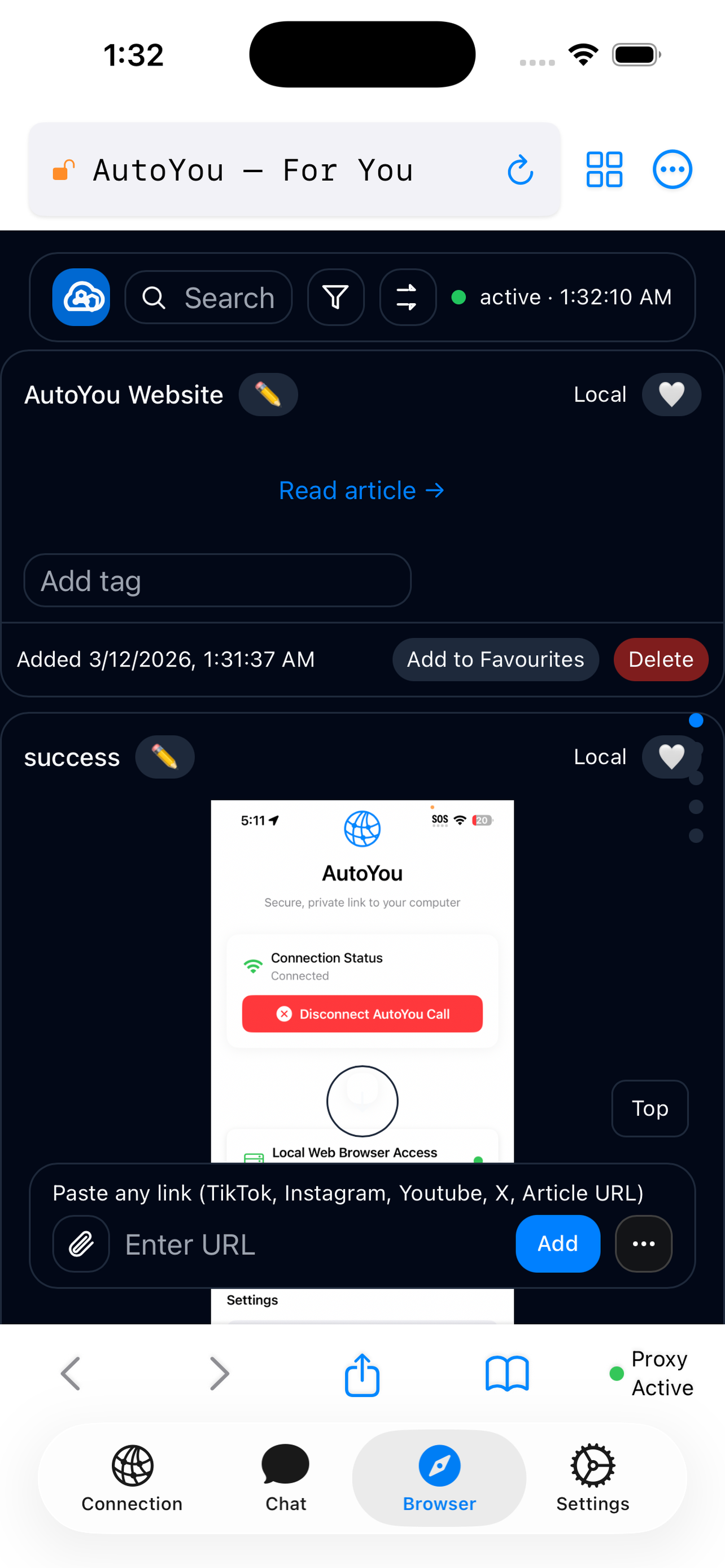
OpenClaw admin access: With --proxy-target http://127.0.0.1:8856
and OpenClaw running, your phone's Browser tab shows the full OpenClaw admin interface
— model settings, channels, logs — without exposing any port.
Voice calls
AI voice calls powered by your machine
AutoYou's voice path uses the WebRTC SRTP audio track. Your computer transcribes speech with Whisper, routes the text through your AI, and streams TTS audio back. No cloud STT subscription needed.
Install voice dependencies
pip install openai-whisper sounddevice numpy scipyConfigure STT / TTS in settings
Set the Whisper model size and TTS provider in the local admin dashboard
at http://localhost:8099/admin or via server startup flags.
Smaller Whisper models (tiny, base) are faster;
larger ones (medium, large) are more accurate.
python -m autoyou_lib --whisper-model baseTap the voice button in the app
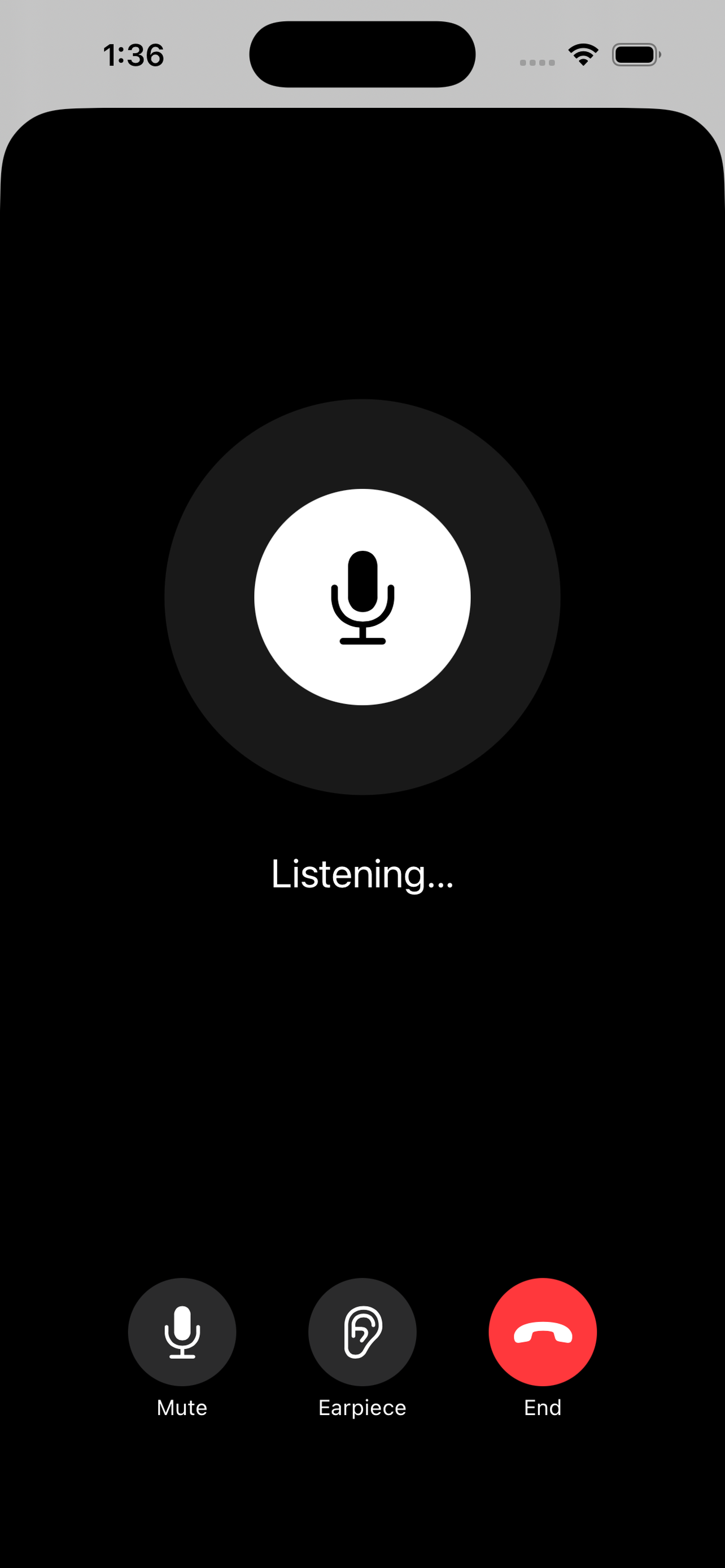
Once the SRTP audio track is live, tap the mic icon in the AutoYou chat or voice tab. Audio flows to your machine, is transcribed, routed to your AI, and the TTS response streams back.
Paid tier
AutoYou Cloud pairing — no tunnelmole required
Paid AutoYou subscribers can enroll their server with AutoYou Cloud. The cloud acts as a signaling relay — routing AutoPair offers from the app to the server and answers back — without tunnelmole. Your actual data still flows P2P.
Option 1 — Command
Enroll at runtime
Works in OpenClaw without a server restart:
/autoyou-enroll https://cloud.autoyou.me YOUR_TOKENOption 2 — Plugin config
Auto-enroll on start
{
  "cloudApiUrl":
    "https://cloud.autoyou.me",
  "cloudDeviceToken":
    "YOUR_TOKEN"
}
Option 3 — CLI flag
Direct server startup
python -m autoyou_lib \
  --cloud-api-url https://... \
  --cloud-device-token TOKEN
Cloud pairing protocol:
① Server → POST /api/v1/servers/register
{device_token, server_name}
← {server_id}
② Server → GET /api/v1/servers/{id}/inbox?timeout=30
← {messages: [{id, type:"autopair_offer", payload}]}
③ Server → POST /api/v1/servers/{id}/messages/{msg_id}/reply
{type:"autopair_answer", payload}
④ Cloud relays answer → App → ICE completes → P2P link opens
(Cloud is no longer involved after this point)Network considerations
Firewalls, tunnels, and fallback modes
During /pair, your computer creates a temporary public HTTPS URL
via Tunnelmole so your phone can find it. This tunnel is only active for
a few seconds during the initial handshake, and it requires a valid
one-time code to accept any connection. Once the direct WebRTC link is
established, the tunnel shuts down and your computer is no longer reachable
from the internet.
What if my network blocks the tunnel?
Some corporate firewalls, restrictive ISPs, or network security policies may
block outbound connections to the public reverse proxy. This only affects the
first-time /pair — not ongoing use. If blocked:
-
AutoPair (
/autopair) exchanges encrypted WebRTC offers and answers through your messaging app. No public URL is needed. If you've paired once from any network, AutoPair will reconnect you from anywhere. - Cloud Pair (paid) uses AutoYou's relay server for the handshake, completely eliminating the need for any tunnel on your computer. Only the encrypted handshake passes through the cloud — once connected, all traffic flows directly P2P.
Advanced networking
ICE, STUN, and TURN — when direct connections fail
WebRTC uses ICE (Interactive Connectivity Establishment) to find the best path
between your phone and computer. On most home and office networks this works
automatically. But some complex network environments — symmetric NATs,
double NATs, carrier-grade NATs, or strict enterprise firewalls — can
prevent ICE from completing. When this happens, neither /pair,
AutoPair, nor Cloud Pair will establish a direct connection.
STUN servers
STUN servers help your devices discover their public IP addresses and port mappings. AutoYou uses Google's public STUN servers by default, which work for most networks. If you're in a region where these are blocked or slow, you can configure locally-hosted STUN servers for better performance and reliability.
TURN servers
When a direct peer-to-peer path is impossible (symmetric NAT, double NAT), TURN servers relay all traffic between your devices. TURN requires credentials and uses more bandwidth, but guarantees connectivity on even the most restrictive networks.
How to configure
You can obtain STUN/TURN credentials from providers like Metered (metered.ca/stun-turn) or host your own with coturn. Then paste the ICE server configuration into either:
- AutoYou app: Settings → ICE Server Bundle
- AutoYou-Computer: Admin UI at
localhost:8001→ ICE Servers
The configuration is a JSON array:
[
  {"urls": "stun:stun.your-region.example.com:3478"},
  {
    "urls": "turn:turn.your-region.example.com:3478",
    "username": "your-username",
    "credential": "your-password"
  }
]
For a comprehensive guide on WebRTC connectivity, choosing STUN/TURN providers, and diagnosing ICE failures, search for "WebRTC TURN server guide" — the WebRTC.org documentation and Metered's guides are excellent starting points.
Troubleshooting
Common issues and fixes
Server not reachable during /pair
Your network may block the temporary Tunnelmole public URL. Check logs for AutoYou server is now publicly accessible. If it failed, try /autopair instead (works without any public tunnel), or use Cloud Pair.
OTP rejected
OTPs expire after 5 minutes. Re-send /pair to get a fresh code. Ensure the messaging bot is connected to the same running server instance.
WebRTC connection stalls at ICE
Your network may have a symmetric NAT or strict firewall. Try switching from WiFi to mobile data. If the issue persists, configure custom STUN/TURN servers (see ICE/STUN/TURN section above). Metered.ca provides free STUN and affordable TURN servers.
AutoPair fails silently
Check that --security-mode matches what the app expects. In Secure-Pro mode, verify the TOTP secret is correct and your system clock is accurate (TOTP codes are time-sensitive).
Browser proxy shows blank page
Confirm --proxy-enabled flag is set and --proxy-target points to a running service. Check server logs for HTTP_REQUEST lines to confirm the message is arriving.
Voice: no audio / STT not working
Run pip install openai-whisper sounddevice. Check that the AutoYou app has microphone permission. Smaller Whisper models (tiny) load faster on first run.
Cloud pairing: enrolled: false
Verify your device token is valid. Check server logs for AutoYou Cloud: registration failed. Ensure cloud-api-url is reachable from your server.
Neither /pair nor AutoPair nor Cloud Pair works
This usually means ICE negotiation is failing due to a very restrictive network. You need a TURN server with credentials. See the ICE/STUN/TURN section for setup instructions.
Ready to connect
Download AutoYou. It's free. No account needed.
Install the app, start the server, pair with your messaging app. Under five minutes.