Start the AutoYou server
Run the AutoYou server on your Mac, Windows, or Linux computer. It starts listening for pairing requests. Or let the OpenClaw plugin auto-start it.
pip install autoyou-lib
python -m autoyou_libFree. No account needed.
AutoYou connects your iPhone or Android directly to your own computer. Chat with AI, browse the web through your machine, make voice calls, and transfer files — all through a private, encrypted peer-to-peer link. No account required. No cloud. Completely free.
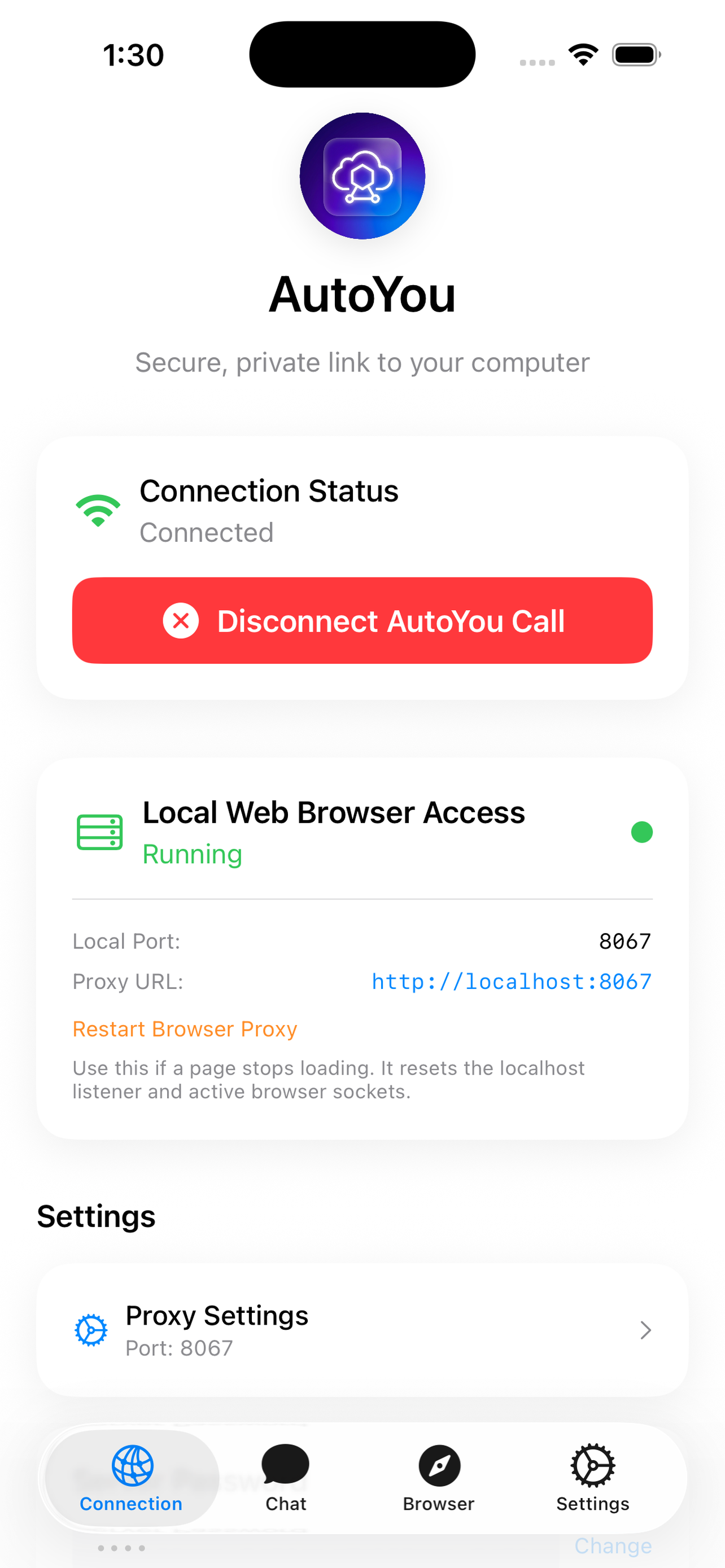
No account. No sign-up. No data collection. AutoYou pairs your phone to your computer using a messaging app you already have — Telegram, WhatsApp, or Signal. Everything runs on your own hardware. The app never asks you to create an account, and no personal data is sent to AutoYou's servers.
Get connected in minutes
AutoYou uses your existing messaging app to pair your phone to your computer. After the first pairing, reconnections happen automatically — no codes, no accounts, no friction.
Run the AutoYou server on your Mac, Windows, or Linux computer. It starts listening for pairing requests. Or let the OpenClaw plugin auto-start it.
pip install autoyou-lib
python -m autoyou_lib
Send /pair to your bot on any of these messaging apps.
You'll get a one-time code. Enter it in the AutoYou app on your phone.
Your computer briefly creates a secure HTTPS tunnel for the handshake.
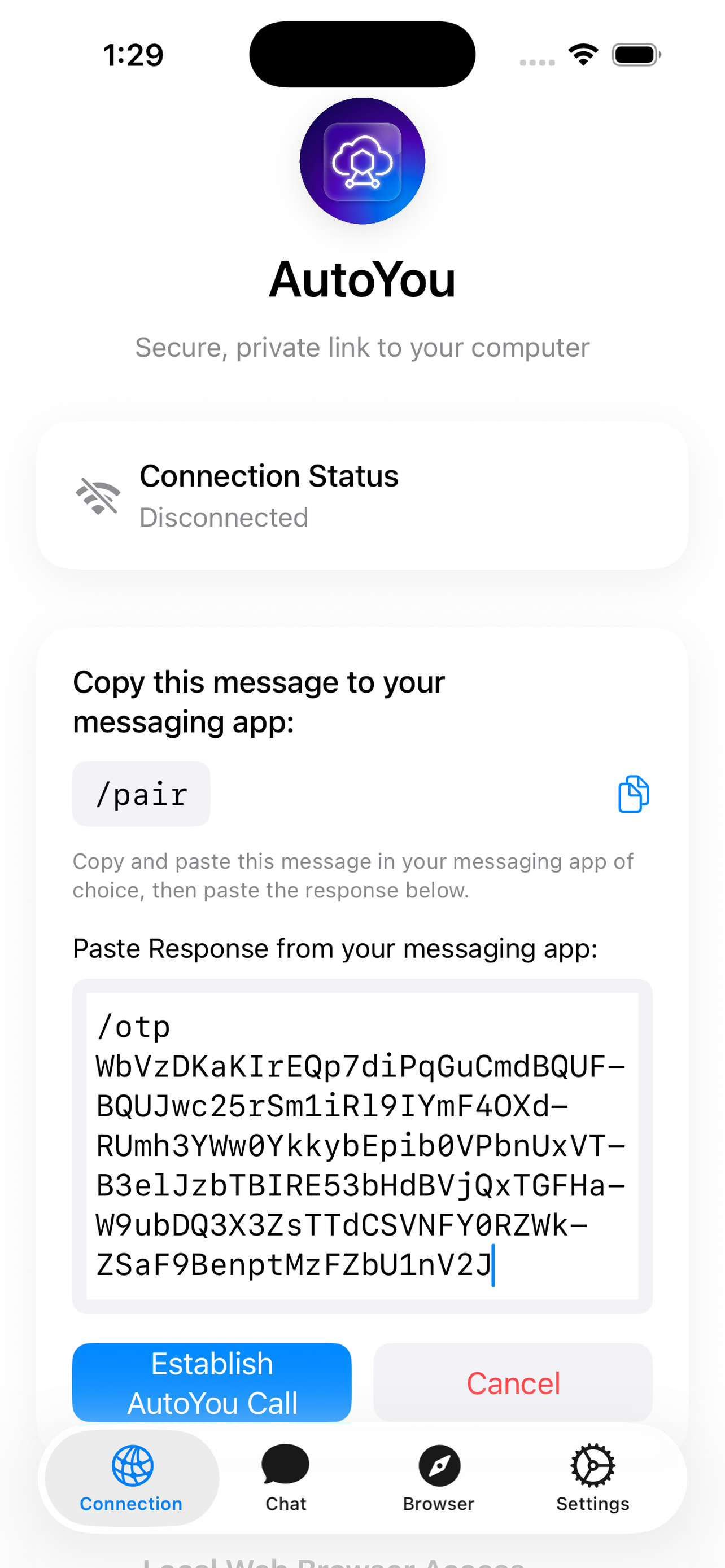
After the code is verified, a direct WebRTC peer-to-peer link opens between your phone and computer. The tunnel closes — your computer is no longer exposed to the internet.
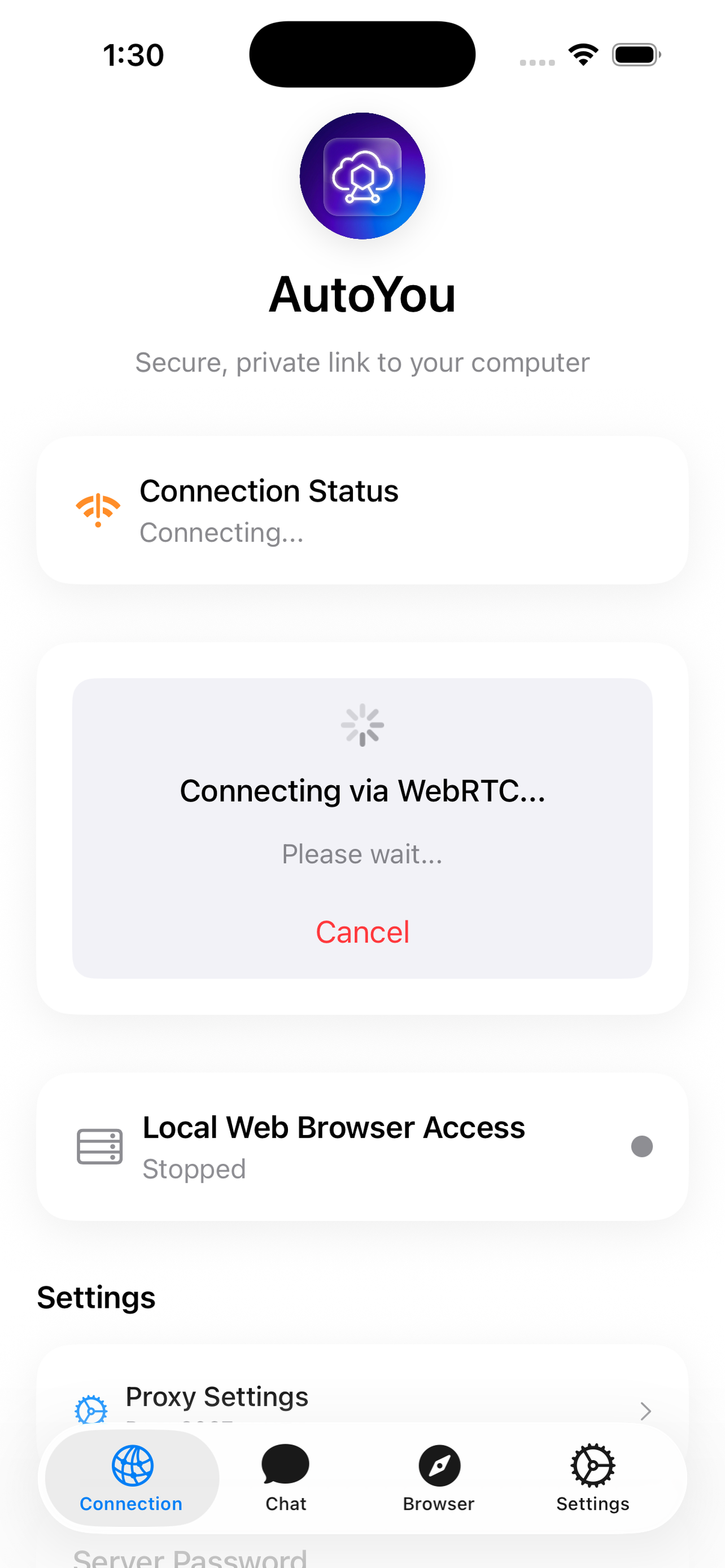
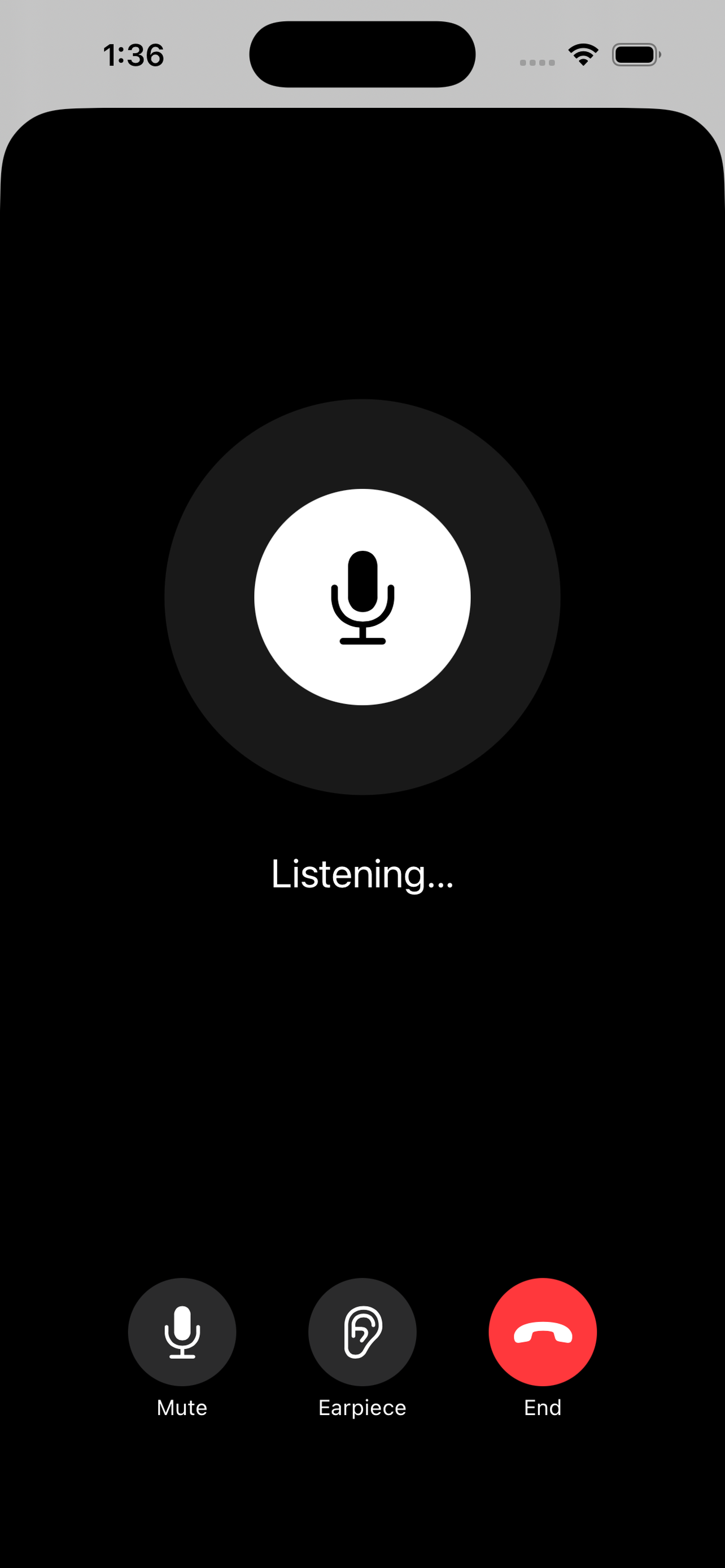
Your phone now has direct access to your computer. Chat with AI, browse the web through your machine, make voice calls, send files, access notes — all through the encrypted P2P connection.
Pair with apps you already use
AutoYou doesn't make you install yet another messaging app. You pair your phone to your
computer by sending /pair to a bot on a messaging platform you already have.
After the first pairing, your phone auto-reconnects without needing the messaging app again.
Telegram
Create a Telegram bot, point it at your AutoYou server, and send /pair.
The bot replies with a one-time code that your phone uses to establish the connection.
Connect your WhatsApp account as a messaging partner. Send /pair and
the one-time code arrives in your WhatsApp chat. Enter it in the app and you're connected.
Signal
Use Signal as your pairing channel for maximum privacy. Same /pair flow,
same one-time code, same direct encrypted connection to your computer.
Everything in one connection
Once your phone is connected to your computer, you get access to chat, a full web browser, voice calling, file transfer, notes, and AI agent dashboards — all through the same encrypted connection.
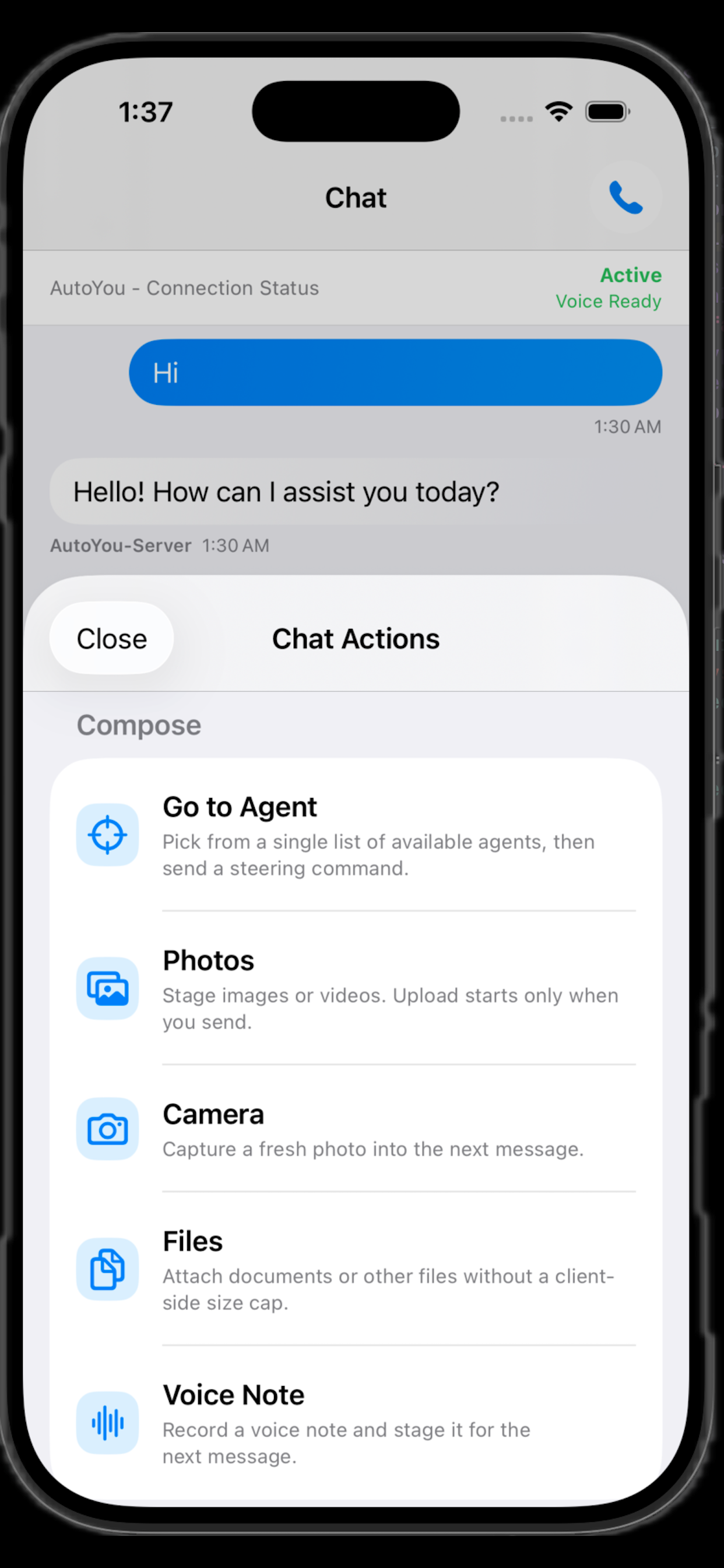
AI Chat
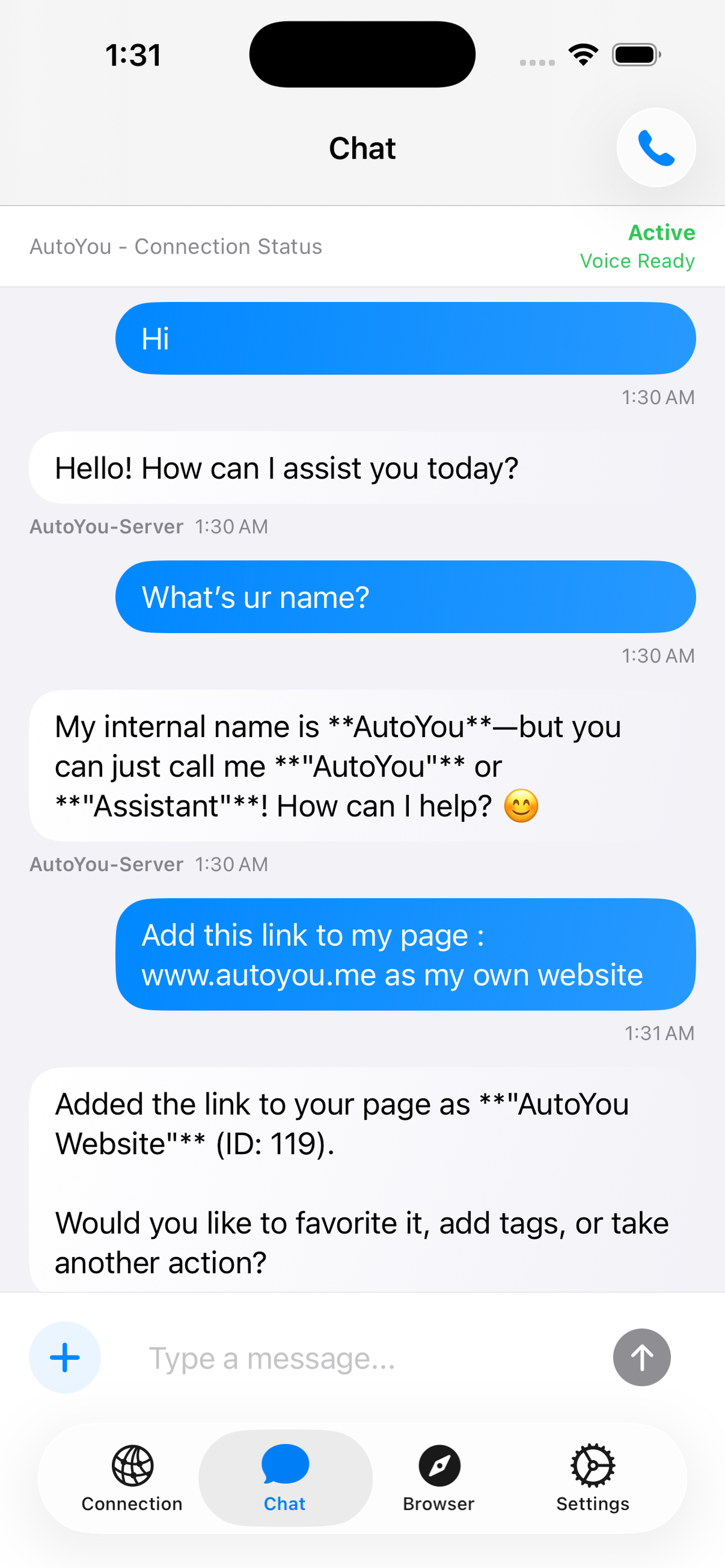
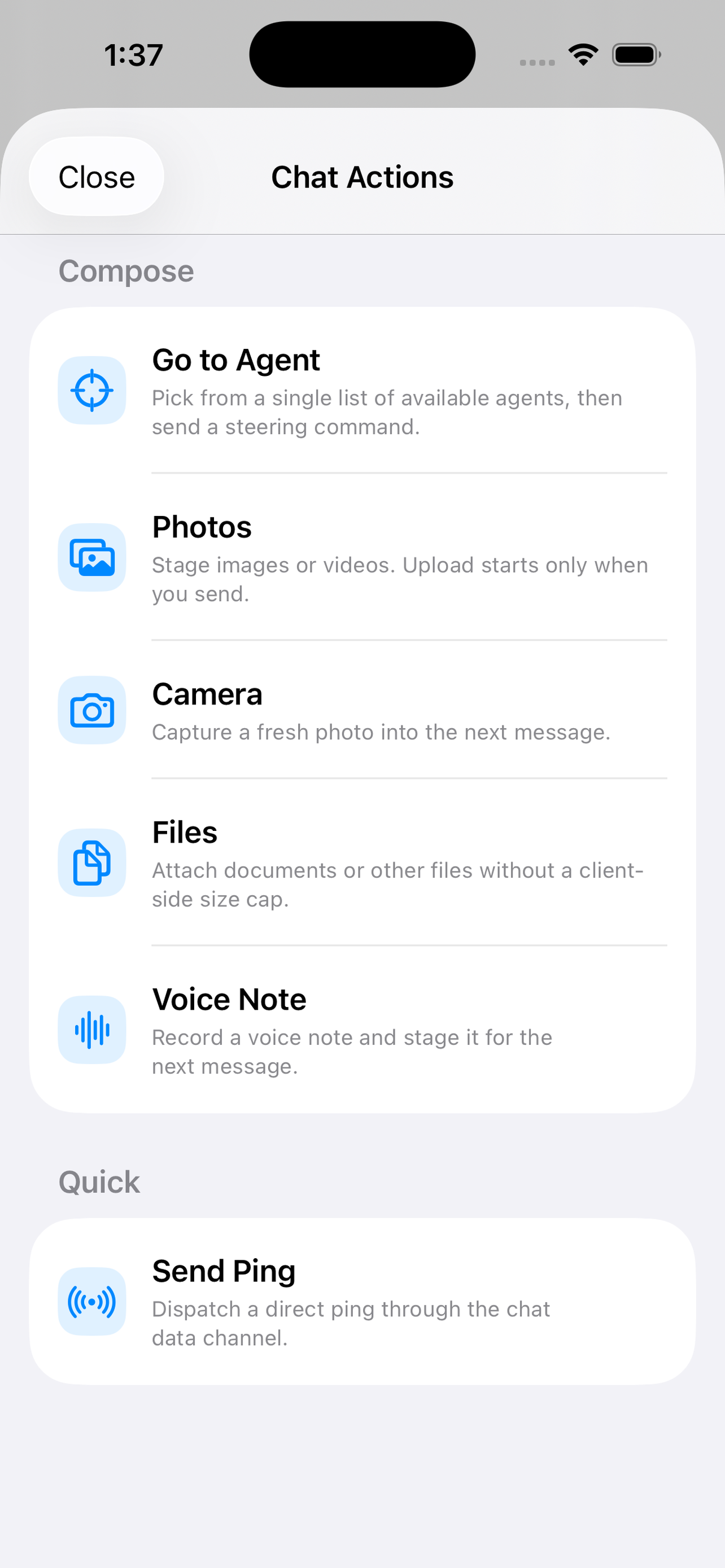
Chat messages travel over the encrypted DataChannel to your computer, where they're routed to your AI backend — OpenClaw, a local model, or any custom agent. Responses stream back in real-time. Attach files, stage documents, and activate voice — all from the same chat thread.
Web Browser
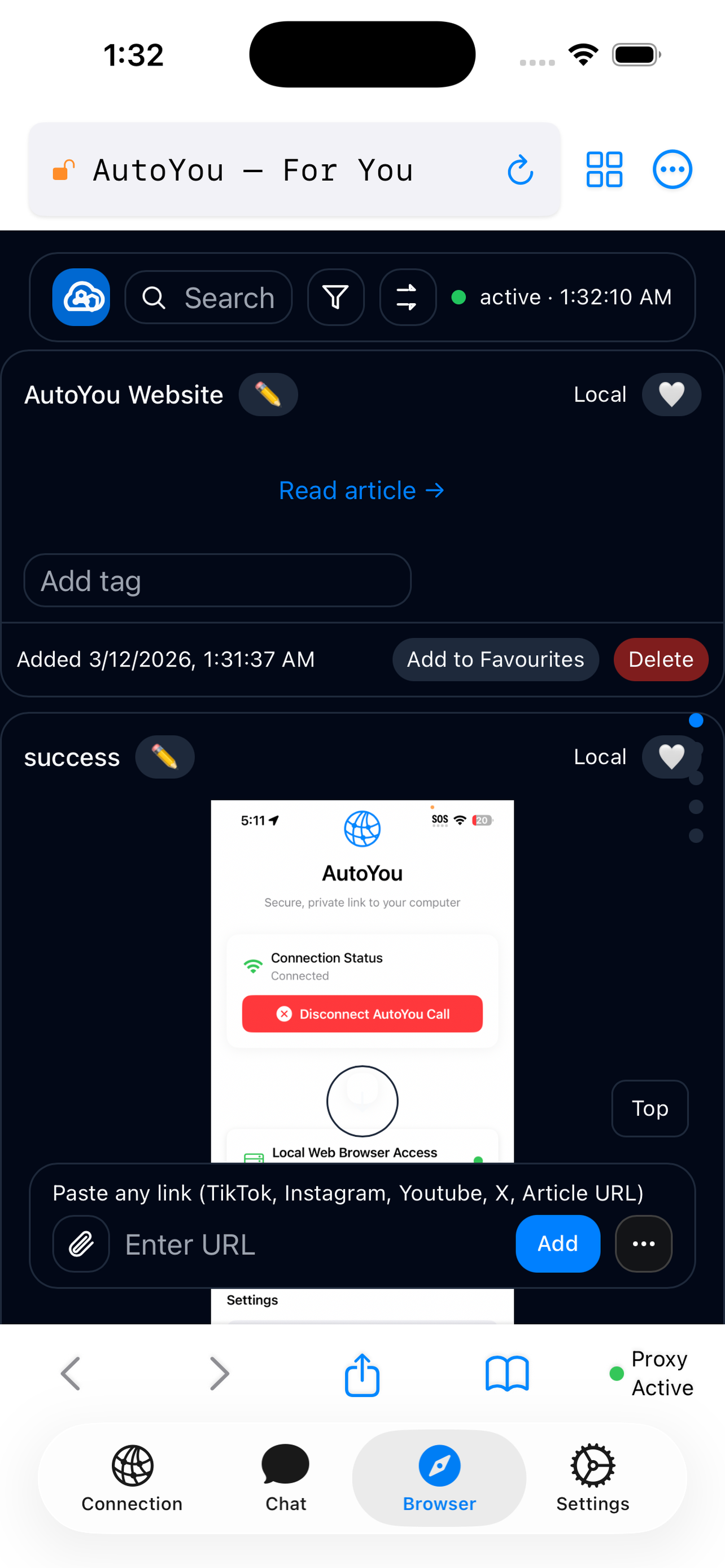
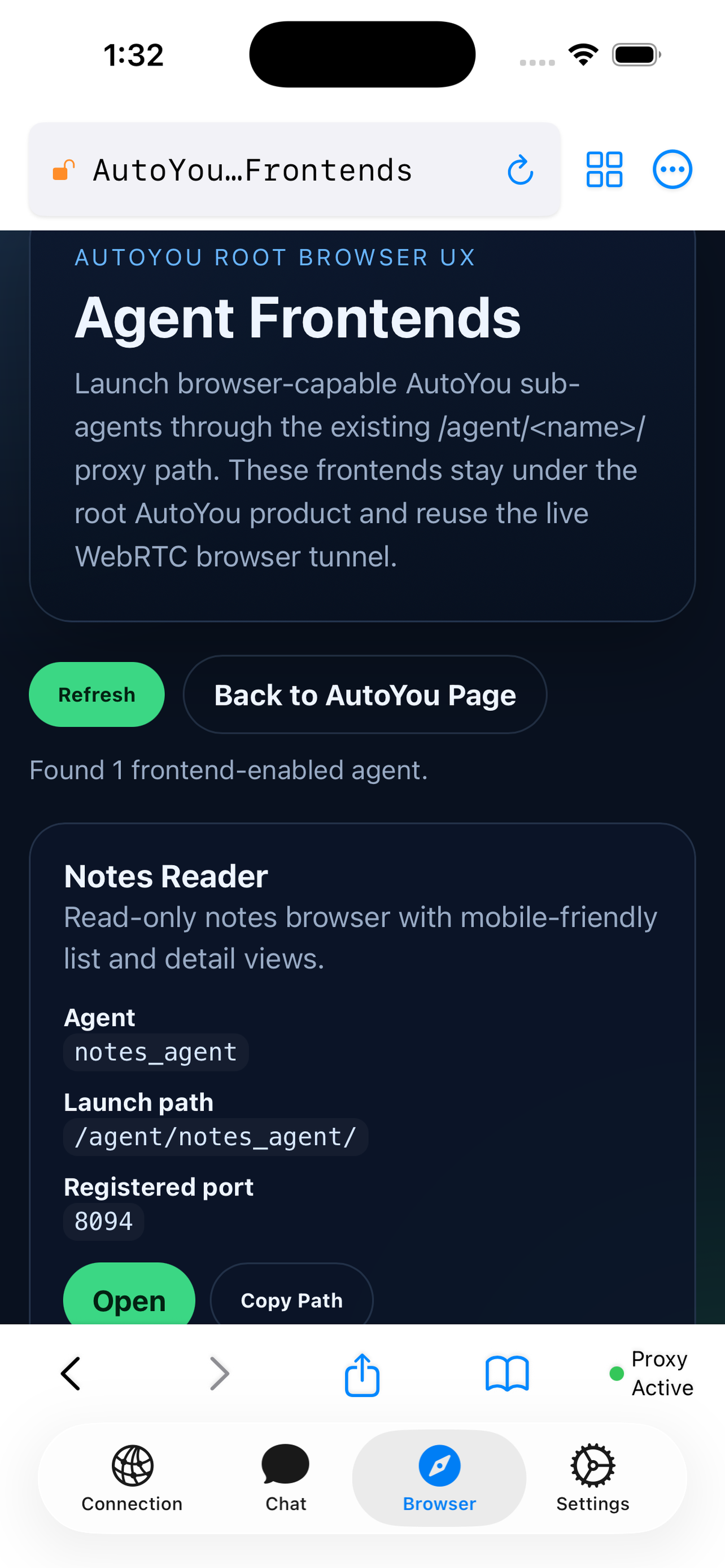
The Browser tab in AutoYou works like a regular web browser, but every HTTP request travels through your computer. Type a URL, your phone sends the request over the encrypted WebRTC DataChannel to your machine, your computer fetches the page, and the response comes back to your phone. Websites see your computer's IP address, not your phone's. No ports need to be opened. You can also access local dashboards, AI agent UIs, and private tools running on your machine.
Voice Calls
Speak to your phone and the audio streams directly to your computer over the encrypted SRTP audio channel. Your computer transcribes your speech, sends it to your AI, and streams the response back as audio. Mute, switch speakers, pick audio routes — it works like a native phone call.
Files & Notes
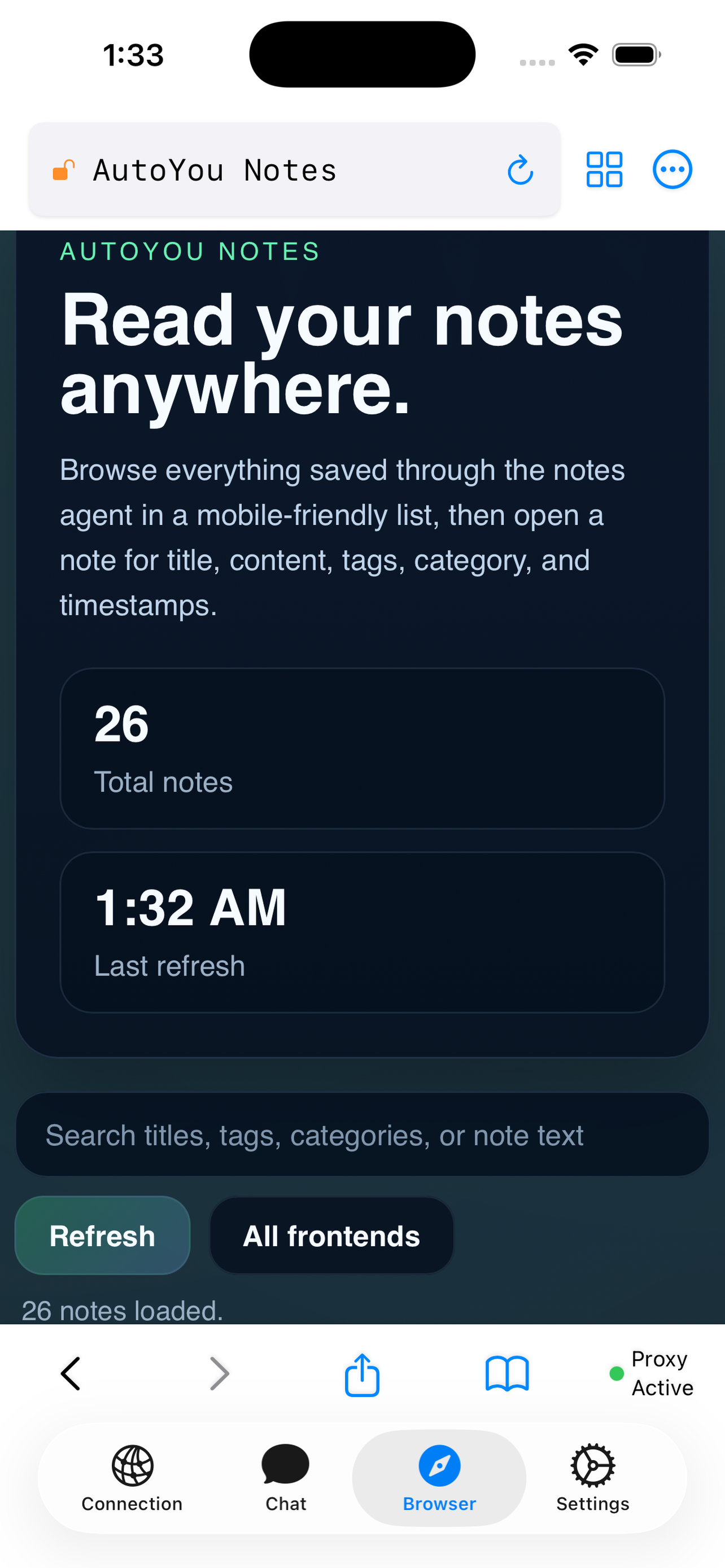
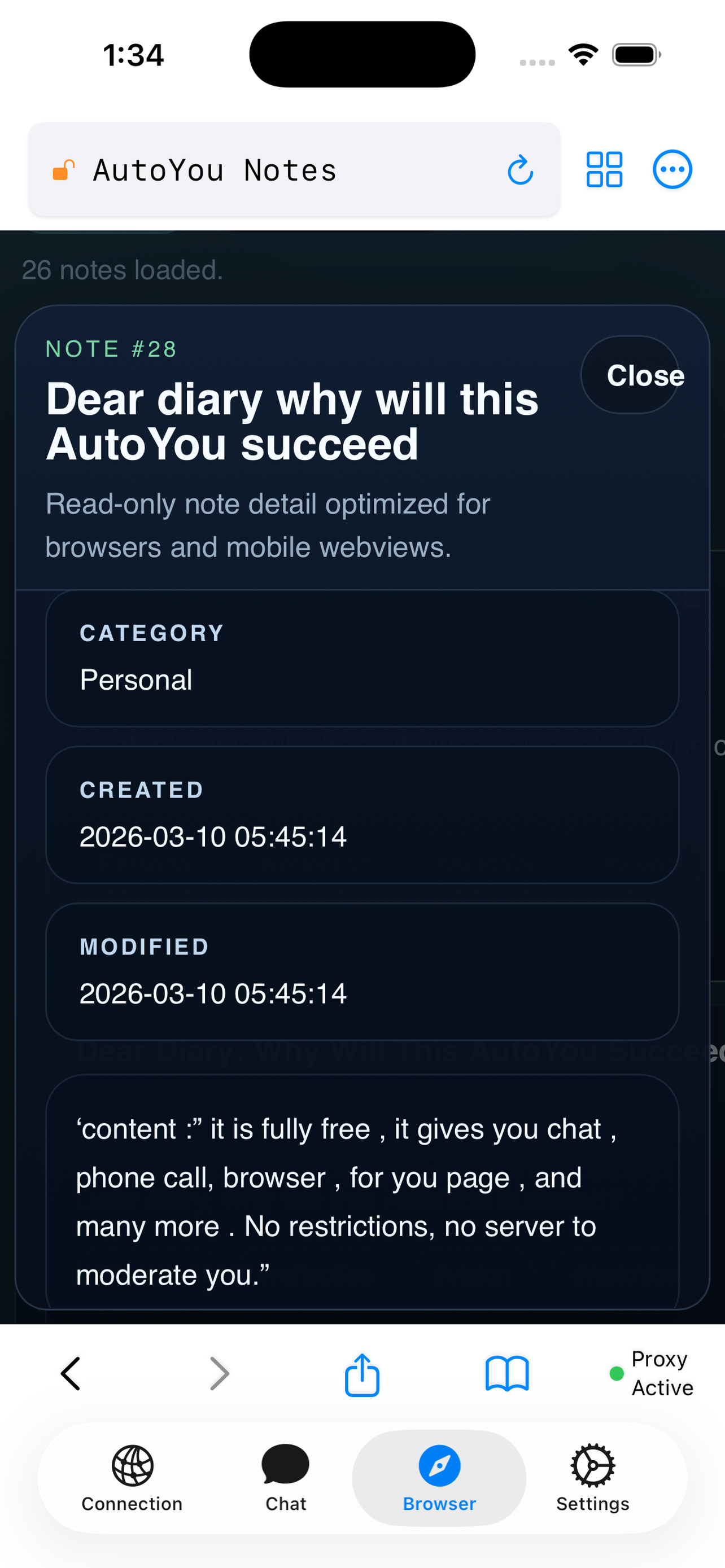
Send photos, documents, and files between your phone and computer through the encrypted connection. Files are chunked, checksummed, and reassembled automatically. Notes on your computer are accessible from anywhere — no sync service needed.
Security
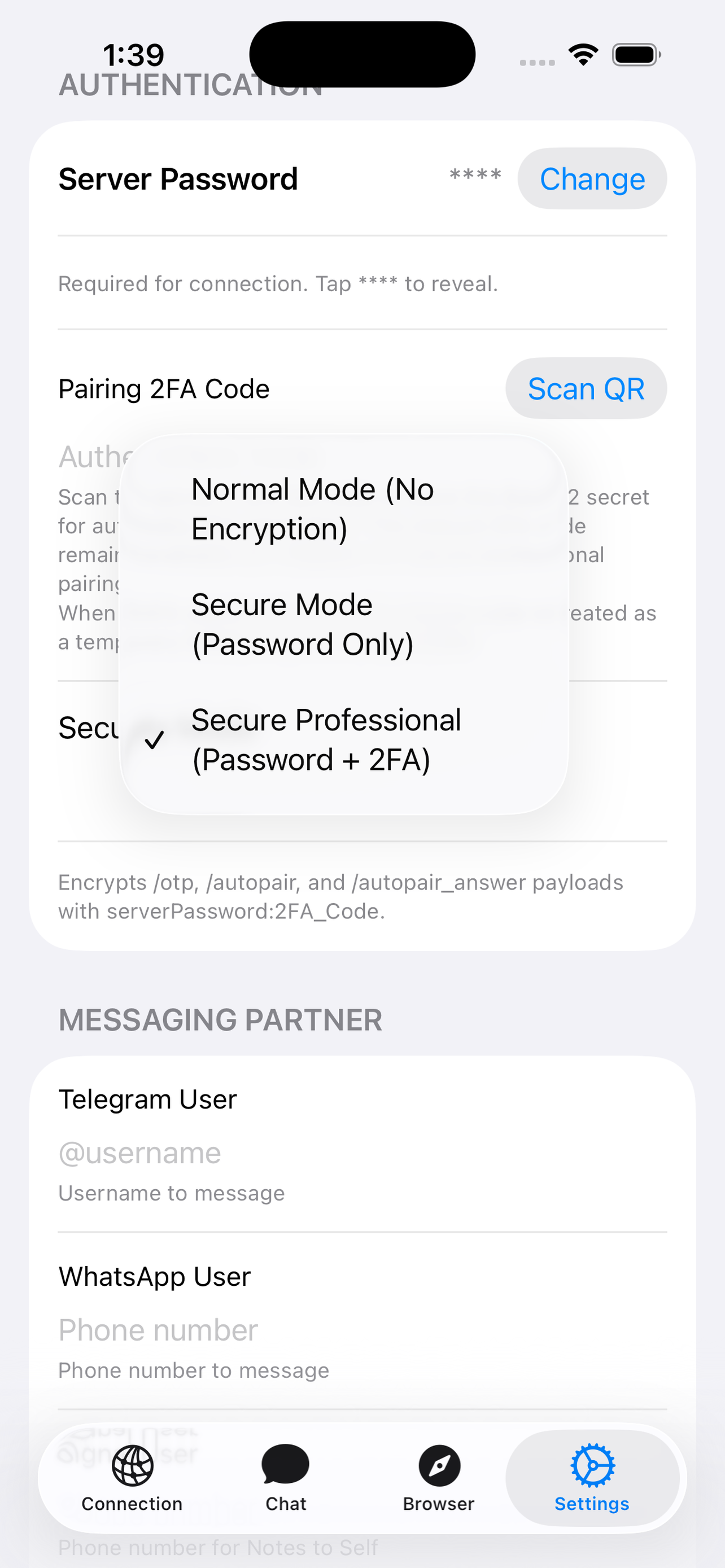
Every connection uses WebRTC's built-in DTLS/SRTP encryption. For extra protection, enable Secure mode (AES-256-GCM encrypted pairing) or Secure Professional (adds TOTP two-factor authentication on every reconnect). The security level is always visible and explicit.
Security modes →Under the hood
The AutoYou browser isn't a VPN or a remote desktop viewer. It's an HTTP proxy tunneled through your encrypted WebRTC DataChannel.
This works for regular web pages, Server-Sent Events (SSE streaming), WebSocket connections,
and binary downloads. Large responses are automatically chunked and reassembled. You can also
access local services running on your computer (like localhost:3000) —
turning your phone into a mobile dashboard for any tool on your machine.
Secure pairing
During the initial pairing, your phone needs to find your computer. AutoYou uses Tunnelmole to create a temporary, authenticated HTTPS tunnel.
Step 1
When you send /pair, your computer creates a public HTTPS URL via
Tunnelmole. This URL points to your computer's pairing endpoint — but only
accepts requests with a valid one-time code.
Step 2
Your phone sends the one-time code to the tunnel URL. The server verifies it (SHA-256 hashed), and if valid, begins the WebRTC handshake — exchanging SDP offers and ICE candidates.
Step 3
Once the WebRTC connection is established, the tunnel is no longer needed. Your computer is no longer exposed to the internet. All future communication flows directly between your phone and computer — peer-to-peer.
Your computer is only reachable for seconds. The tunnel exists solely for the pairing handshake. It requires a valid OTP to do anything. After pairing, reconnections use AutoPair and never need the tunnel again.
Firewall note
Some corporate networks, firewalls, or restrictive ISPs may block the temporary
public reverse proxy used during /pair. This only affects the
first-time pairing — once connected, the tunnel shuts down
and is never used again.
If the initial tunnel is blocked, you have options:
/autopair) — if you've paired
before from any network, AutoPair reconnects directly without the tunnel.
The /autopair mode exchanges encrypted offers and answers through
your messaging app, bypassing the need for a public URL entirely.
Advanced networking
AutoYou uses WebRTC, which relies on ICE (Interactive Connectivity Establishment) to find the best path between your phone and computer. On some networks, this needs extra configuration.
In most home and office networks, AutoYou connects without any configuration.
However, some environments — symmetric NATs, double NATs, carrier-grade NATs,
strict enterprise firewalls — can prevent the ICE negotiation from completing.
When this happens, neither /pair, AutoPair, nor Cloud Pair will
establish a direct connection.
You can obtain STUN/TURN credentials from providers like Metered (metered.ca) or host your own with coturn. Then paste the ICE server configuration directly into the AutoYou app Settings → ICE Server Bundle field, or into the AutoYou-Computer Admin UI. The configuration is a JSON array of ICE server objects:
[
  {"urls": "stun:stun.your-region.example.com:3478"},
  {
    "urls": "turn:turn.your-region.example.com:3478",
    "username": "your-username",
    "credential": "your-password"
  }
]
For a full guide on WebRTC connectivity, ICE negotiation, and choosing the right STUN/TURN provider for your region, see the troubleshooting section of our setup guide.
Security modes
Every connection is encrypted by default. Choose the security level that matches your needs.
The default. WebRTC DTLS and SRTP protect the connection at the transport layer. AutoPair reconnects with your saved session key. No password needed.
AutoPair payloads are encrypted with AES-256-GCM using a password-derived key. The WebRTC connection also keeps its built-in transport encryption.
In addition to AES-256-GCM, every reconnect requires a valid TOTP code from your authenticator app — providing two-factor authentication on every connection.
Works with OpenClaw
OpenClaw is a desktop AI gateway that is powered by Claude, GPT-5, Gemini, Ollama, and dozens more models, integrations & skills — all on your own computer. Install the AutoYou plugin and your phone gets a direct, encrypted connection to the full OpenClaw pipeline. Chat with any model, access agent dashboards, make voice calls to your AI — without ever switching to Telegram, WhatsApp, or Signal.
Run openclaw plugins install @openclaw/autoyou and the plugin
auto-starts autoyou_lib as a subprocess, registers itself as an
OpenClaw model provider, and begins listening for your phone. Your chat messages
route through OpenClaw's models. Your Browser tab proxies to OpenClaw's dashboard.
Your voice calls transcribe on your machine and respond through OpenClaw's agents.
All of it encrypted. All of it peer-to-peer. All of it yours.
openclaw plugins install @openclaw/autoyouChat with any model
Type a message in the Chat tab. It travels through the encrypted WebRTC DataChannel to your computer, gets routed to whichever model you've configured in OpenClaw, and the response streams back in real-time. Switch models in OpenClaw, not in the app.
Browse agent dashboards
Open the Browser tab and visit localhost:8067 to see your
page feed, or navigate to agent frontends like Notes, Admin, or any custom
agent UI running on your machine. The browser proxy tunnels it straight
to your phone — from anywhere on the planet.
Voice calls to AI
Tap the voice button. Your audio streams over encrypted SRTP to your computer, where it's transcribed (Azure Speech or local Whisper), sent to OpenClaw's agents, and the response is read back as TTS audio. Like calling your own AI assistant.
TCP inside UDP. Yes, really.*
localhost from across the globe.
When you open localhost:8067 in the AutoYou Browser tab, your phone
isn't using a VPN. It isn't port-forwarding. It's tunneling HTTP over WebRTC's
SCTP-based DataChannel — which means your TCP web requests get wrapped inside
UDP datagrams, encrypted with DTLS, and shot across the internet to your computer.
Your computer unpacks them, hits the local web server, and sends the response back
the same way. Network engineers, feel free to read that twice.
The AutoYou server (autoyou_lib) runs an HTTP proxy that exposes
any web service on your machine to the Browser tab in your phone. OpenClaw's
dashboard at localhost:8067. Agent frontends like Notes at
/agent/notes_agent/. The Admin UI at localhost:8001.
Jupyter notebooks. Grafana panels. Anything running locally becomes accessible
on your phone, without exposing a single port to the public internet.
Your computer stays invisible. Your data never leaves the encrypted P2P tunnel. And it works from your couch, a coffee shop, or another continent.
* For the network engineers: yes, we are literally tunneling TCP inside UDP. HTTP requests get serialized into JSON, sent over the SCTP-based DataChannel, traverse a DTLS-encrypted UDP connection negotiated via ICE, arrive at your computer, get unpacked, and hit your local web server as real HTTP requests. The response takes the same path back. Large responses are chunked and reassembled automatically. SSE streaming and WebSocket connections work too. Your firewall never notices a thing.
Get started
pip install autoyou-lib
python -m autoyou_lib
autoyou_lib is the Python library that powers the AutoYou server.
It's on PyPI. Install it, start it, and your Mac, Windows, or Linux computer
is ready to accept connections from the AutoYou app.
Or with OpenClaw
openclaw plugins install \
  @openclaw/autoyou
The OpenClaw plugin auto-starts autoyou_lib as a subprocess,
routes your chat through OpenClaw's models, proxies dashboards to
your phone, and manages security — all from one install command.
Fully configurable
Choose your AI backend (OpenClaw, Ollama, OpenAI-compatible API),
TTS/STT provider (Azure Speech or local Whisper), security mode,
proxy target, and STUN/TURN servers. Configure via CLI flags, environment
variables, or the Admin UI at localhost:8001.
Optional · $1/month
Everything above is completely free and works without any account. Cloud Pair is for people who want zero friction — no messaging app, no codes, no tunnel on your computer. Open AutoYou, tap connect, and you're talking to your machine in seconds. Especially useful with OpenClaw, where the plugin auto-registers your computer with Cloud Pair so your phone connects to your full AI pipeline without switching a single app.
Always free — no account
AI chat, web browser proxy, voice calls, file transfer, notes, agent frontends, all three security modes, and pairing via Telegram, WhatsApp, or Signal. No account. No payment. No feature limits.
Cloud Pair · $1/month
Sign in with Apple, Google, or GitHub. Subscribe. Your computer registers with AutoYou Cloud via the plugin or the Admin UI. From then on, open the app, tap connect, and you're paired instantly — no messaging app, no public tunnel, no OTP codes.
With OpenClaw, the AutoYou plugin registers your machine automatically.
Use /autoyou-enroll in OpenClaw to connect your server to
Cloud Pair at runtime — no restart required.
Encrypted & private
Cloud Pair relays the WebRTC signaling (SDP offer and answer) through its own encrypted channel. The actual payload is opaque to the cloud — it never reads your messages or connection credentials. Once the P2P link is established, the cloud drops out entirely.
Layer on Secure mode (AES-256-GCM encrypted AutoPair payloads) or Secure Professional (TOTP 2FA required on every reconnect) for additional protection. All three security modes work seamlessly with Cloud Pair — your encrypted connection is your own, regardless of how the handshake happens. Full privacy policy →
Only sign up if you want Cloud Pair. The Sign Up page creates an AutoYou Cloud account and introduces the $1/month subscription. If you just want to use AutoYou for free, you never need to visit that page — download the app, pair with your messaging app, and everything works.
Get started
Install the app on your phone, start the server on your computer, pair with your messaging app, and you're connected. No account needed. No payment required.